A pattern preset lets you save all the settings from a barcode or pattern so you can quickly apply them later. Unlike styles in InDesign, presets don’t stay linked once applied. This means updating a preset will not change the frames it was already used on.
Creating a Preset
Making a new preset is simple:
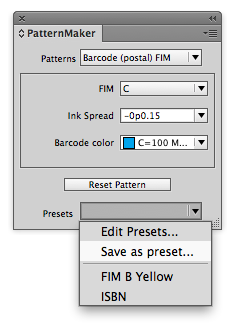
Apply a pattern to a frame.
At the bottom of the PatternMaker palette, open the Presets dropdown.
Choose Save as Preset.
Your new preset is now ready to use.
Applying a Preset
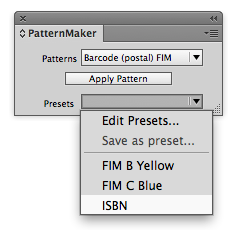
To apply a preset, select a frame then choose the preset from the "Presets" dropdown:
Where Presets Live
Application workspace – presets made with no document open; copied into new documents.
Document workspace – presets saved inside a specific document.
Manage application presets:
Close all documents → PatternMaker flyout menu → Edit Presets...
Moving Presets
- Open the document you want to load the presets into, or start with no document to load presets to the application workspace
- At the bottom of the PatternMaker dropdown, open Presets dropdown → Edit Presets...
- In the dialog, choose Load, then select an InDesign file from the old version with your presets.
- Click OK.
Tip: To capture old application presets, open the old version, create a new document, save it, and load that document in the new version.