By default, patterns created with PatternMaker are embedded as EPS files inside your InDesign document. In most cases you won’t need to unembed them. However, if you do, InDesign gives you a few simple options.
Unembedding a Single Pattern
Open the Links panel.
Select the pattern you want to unembed.
-
From the Links panel menu, choose Unembed File.
The pattern will now be saved to disk and linked instead of embedded.
Unembedding All Patterns at Once
To unembed every pattern in the document at the same time:
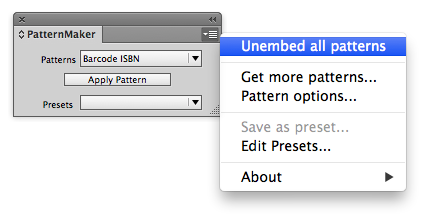
Open the PatternMaker panel.
From the flyout menu, choose Unembed All Patterns.
Important Note about Updates
If you later make a change to a pattern, PatternMaker will re-embed the file.
-> To avoid this, wait until you’ve finalized your pattern designs before unembedding them.
Alternative: Save Patterns as Linked Files
Instead of embedding patterns, you can change PatternMaker’s preferences so that patterns and barcodes are saved to disk and linked automatically. Here's the full article on PatternMaker preferences.
This way:
EPS files are stored externally rather than inside your InDesign file.
Updates remain linked, preventing automatic re-embedding.
With these options, you can decide whether to keep patterns embedded in your InDesign file or manage them as linked EPS files on disk.